This article is for workers who need to update work orders on the Facilitron Works desktop application. To see how to update and close work orders on the Facilitron Works mobile application, please see Closing Work Orders on the Facilitron Works App.
Updating the Work Order
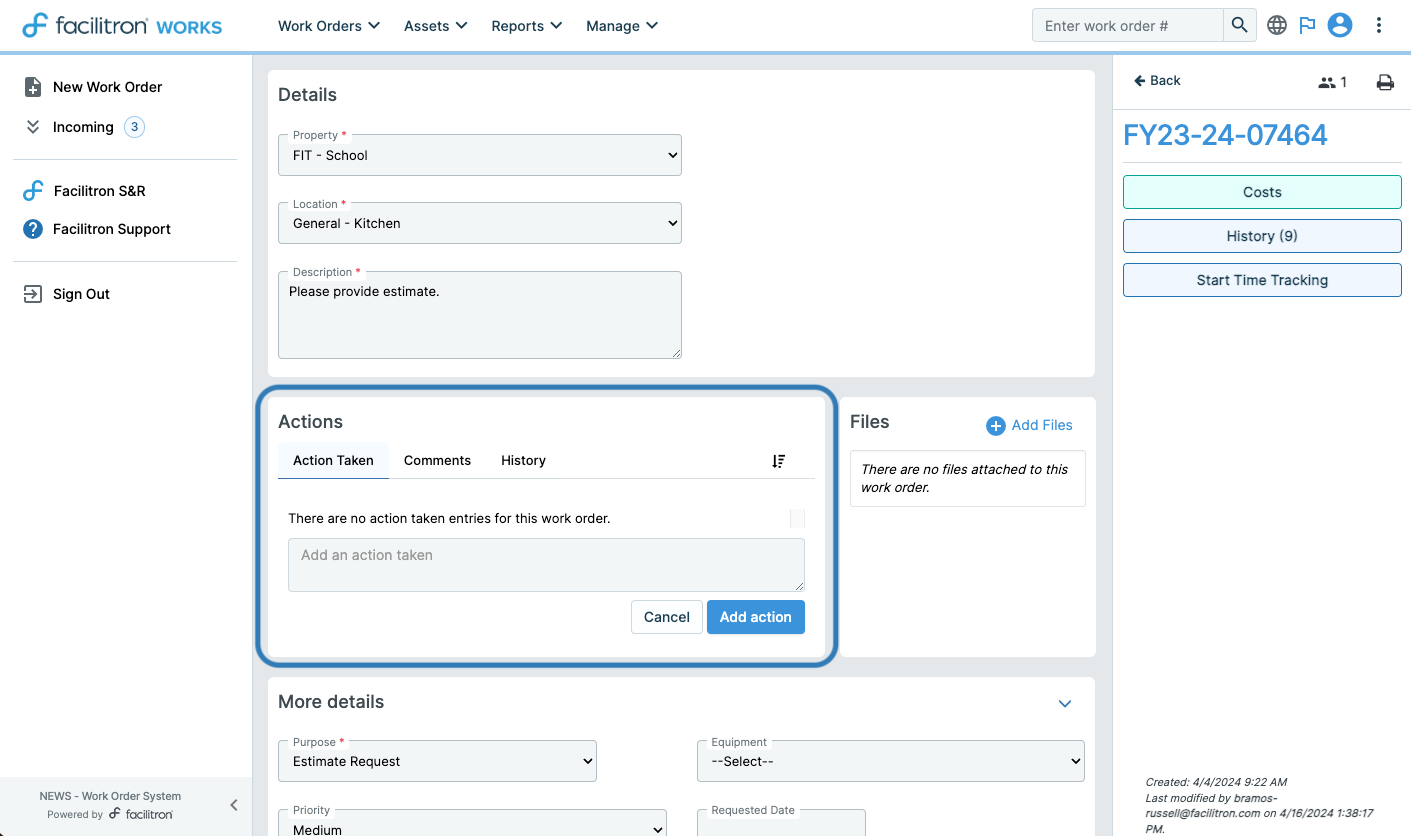
To update a work order in Works, start by scrolling to the "Actions" section of the work order. Here, you have the option to add notes to share action taken on the work order. Providing a comprehensive description of the work performed here is highly recommended for documentation purposes. Below you will see where the "Actions" section is located on a work order.
Costs
To add costs relating to the work order, click "Costs". This button is located beneath the work order number, as shown below.

You will see tabs for employee labor costs, contractor/trade costs, inventory/material costs, and other costs. In the "Costs" pop-up, you can input hours and costs as the property owner employee or as a contractor/worker. Additionally, you can include any inventory or material costs along with other miscellaneous expenses that may arise.
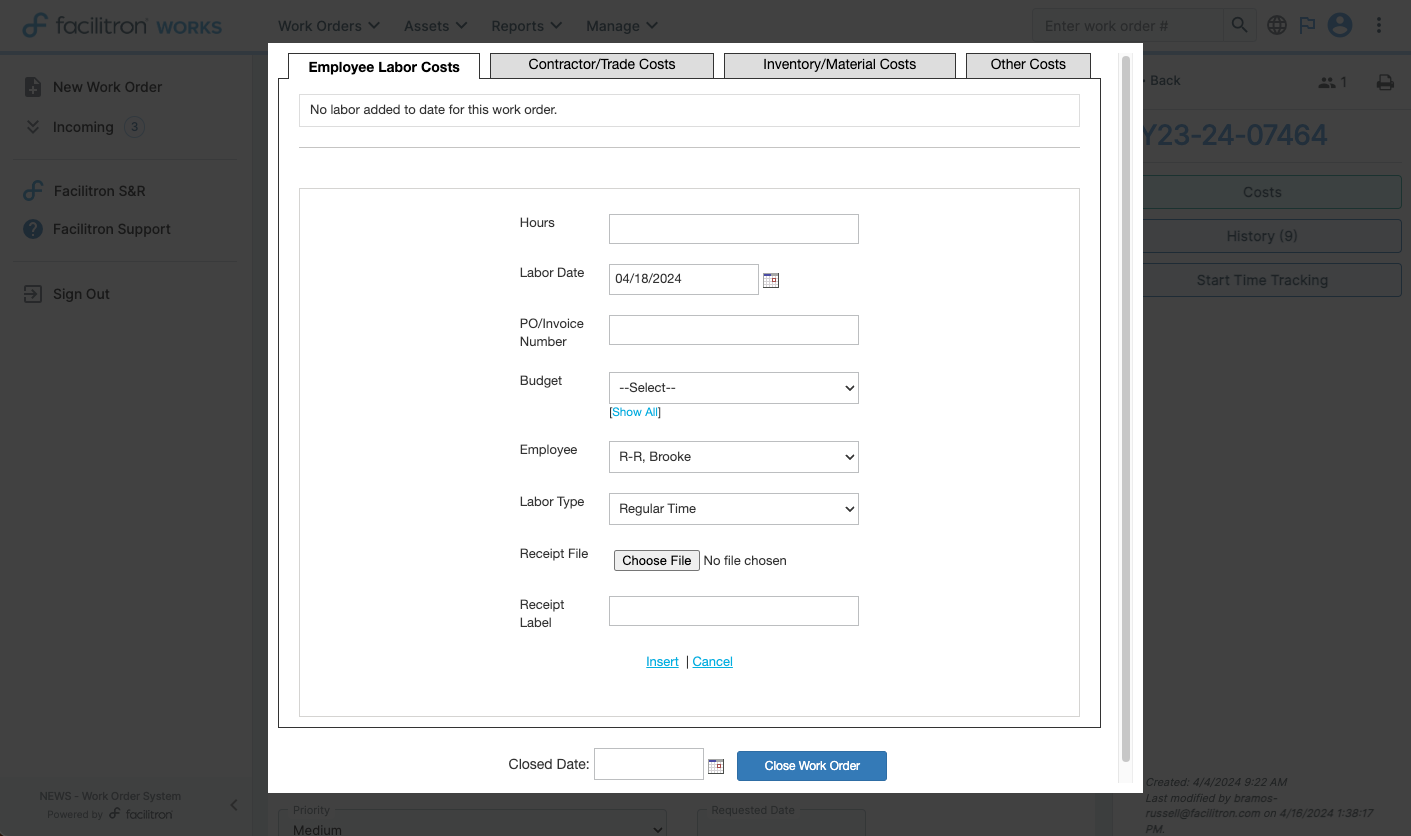
As an employee, you can effortlessly input the hours worked, the work date, invoice numbers, budget details, labor type, and upload receipts with corresponding labels. Once completed, simply click "Insert" to seamlessly track and report costs.
Adding Costs on Other Work Orders
Multiple workers can log costs on the same work order. You can record your hours and costs on any work order you've worked on, even if you're not assigned to it.
If you need to log hours or costs on a work order that’s assigned to someone else, you can search for it (see How Do I Search for a Specific Work Order? for assistance) or access it in one of the following ways:
- You're assigned as a follower
- The work order is shared with your trade in WORKS
- The work order is shared directly with you
- You have access through any other sharing method that provides visibility
Order Administrators can log costs on behalf of workers through the "Costs" section by filling out the Employee Labor Costs for each worker that needs to be added.
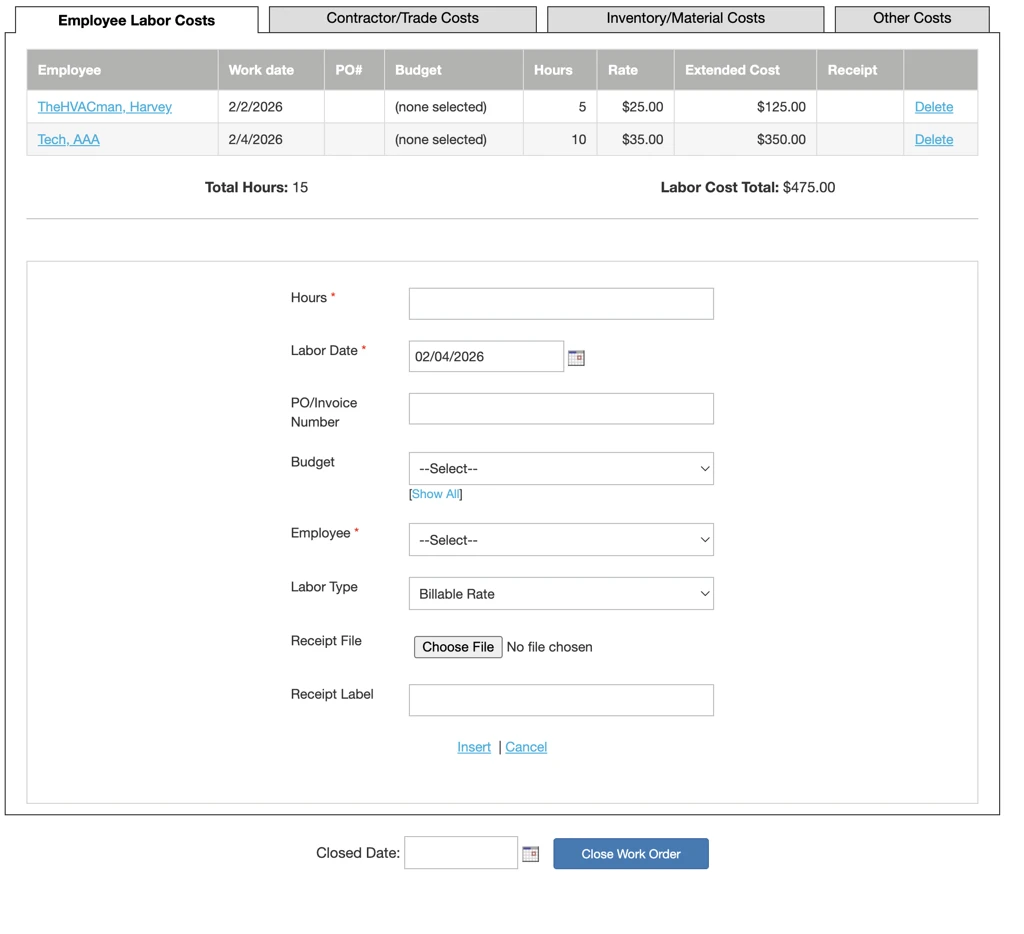 If the work requested in the work order is completed, you may close the work order by entering the closed date and clicking "Close Work Order".
Closing the Work Order
After noting the action taken, costs, and adding any other notes to the work order, the next step is to close the work order. There are two easy ways to do this. One way is to select a date and click "Close Work Order" at the bottom of the "Costs" pop window after filling in costs related to the work order, as noted above.
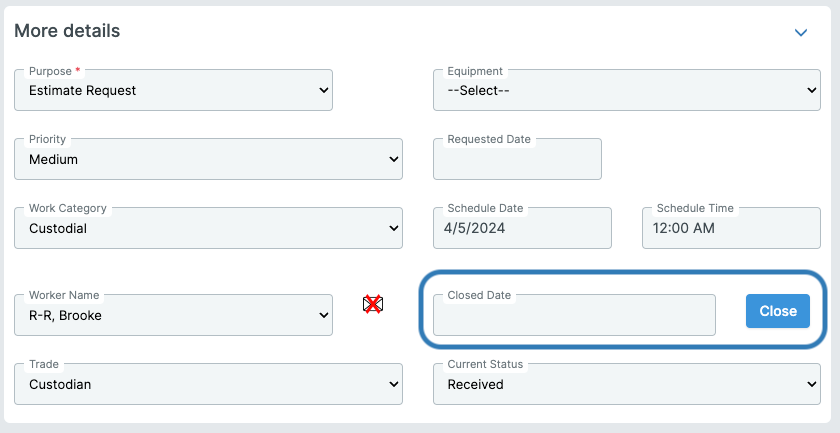
Or, you can close by inputting the closed date and selecting "Close" in the "More details" section, as highlighted below.
For additional assistance, please reach out to Facilitron Support at (800) 272-2962, or email us at support@facilitron.com.
Was this article helpful?
That’s Great!
Thank you for your feedback
Sorry! We couldn't be helpful
Thank you for your feedback
Feedback sent
We appreciate your effort and will try to fix the article